Per-worktree browser
Every Orca worktree has its own browser. It's a real Chromium window — address bar, history, devtools — embedded in a pane. Tabs are scoped to the worktree, so the app you're building against stays out of the way of your other work.
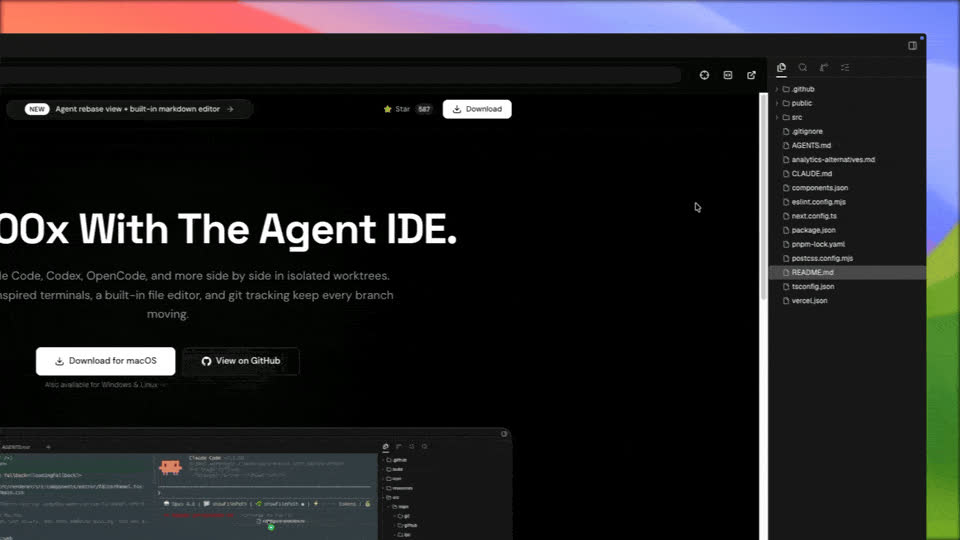
Controls
- Address bar with history and fuzzy URL completion. Non-URL text searches with your Default Search Engine — the same engine the new-tab omnibox uses. Prefix a query with
?in the + field to force search. - Back / forward / reload / stop. Hover the reload control for the normal-reload shortcut; right-click (or long-press) for Reload and Hard Reload with their shortcuts — hard reload bypasses the cache when you're iterating on local frontend assets.
Cmd-F— find in page.Cmd-T— new tab, scoped to this worktree.Cmd-Shift-T— reopen last closed tab.- Page links that use
target=_blankand ordinary unnamed popups open in new Orca tabs in a visible browser pane when available, using the opener tab's browser profile. Named or OAuth-style popups can still open in a separate window.
Worktree scoping
Tabs are filtered per worktree. Switching worktrees restores that worktree's browser tabs and scroll positions.
Remote workspaces
For a workspace on a paired Remote Orca Server, new browser pages render on this desktop by default while HTTP(S), WebSocket, DNS, and loopback traffic still go through the remote host. Input, selection, and popups stay native to this device without changing the page's network identity. The host indicator in the browser toolbar shows where traffic is going.
Under Settings → Browser → Remote server workspaces, choose This device or Server (streamed). The choice applies to new pages only; it does not move a page that is already open. If a locally rendered remote page cannot start, Reopen on server opens a new server-hosted page at its last address (signed-in or form state may differ).
For SSH workspaces, Browse through SSH workspace hosts controls whether browser traffic and DNS go through the workspace's SSH host or this device. Downloads from a client-hosted remote page stay on the remote workspace host, and uploads are staged there before the page receives them.
Link routing
Under Settings → Browser → Link Routing, choose whether http(s) links from the terminal, markdown, and editor open in Orca's per-worktree browser or the system browser.
Links opened in Orca first reuse an existing page for the exact destination in the same workspace, execution host, and browser profile. Otherwise, they open a new tab in a pane already showing a browser. When several browser panes are visible, the focused one wins, then the most recently used one. Browser tabs hidden behind other tabs do not attract new pages. With no browser visible, a new split opens beside the source pane, keeping its contents visible. Explicit Open in new tab actions use the requested pane instead.
A nested Hold Shift… toggle inverts that default for one click with the platform modifier (⇧⌘-click on macOS, Shift+Ctrl+click on Windows / Linux):
- When links open in Orca, the modifier sends one link to the system browser.
- When links open in the system browser, turn the toggle on so the modifier opens one link in Orca's built-in browser instead (plain click stays system).
A capability-verified paired runtime can offer the same Orca/system-browser choice for its terminal links; links from older runtimes remain system-browser only. SSH links whose host is routed follow link routing. When the host's SSH browsing is set to This device, they open in an Orca tab that browses from this device only while links open in Orca; otherwise they stay system-browser only. See Terminal → Link actions.
Downloads
Browser downloads appear in a shelf under the toolbar while they are active or recently completed, with actions to cancel an in-progress download, open a finished file, show it in its folder, or dismiss the row.
Share as artifact
Local HTML files opened in the worktree browser can use Share as artifact in the toolbar to mint a public view link through your signed-in Orca account (same publishing gate and management surface as Markdown). Relative HTML assets are not uploaded — share a self-contained file or use absolute asset URLs. See Settings → Artifacts and CLI reference → Artifacts.
Viewport-size emulation
Set a custom viewport size on a browser tab to test responsive layouts without resizing the whole pane. Orca uses Chrome DevTools Protocol device emulation under the hood, so the page sees the emulated dimensions in window.innerWidth and media queries.
Automation
The browser is also scriptable by agents via the Orca CLI — orca snapshot, orca click, orca fill, and so on. Same browser you interact with, same tabs.
Next steps
- Design Mode — turn the browser into a pointer-to-code feedback loop.
- Browser-use profiles — run the browser with a specific login or cookie jar.